|
The "My Count" Feature
|
 |
|
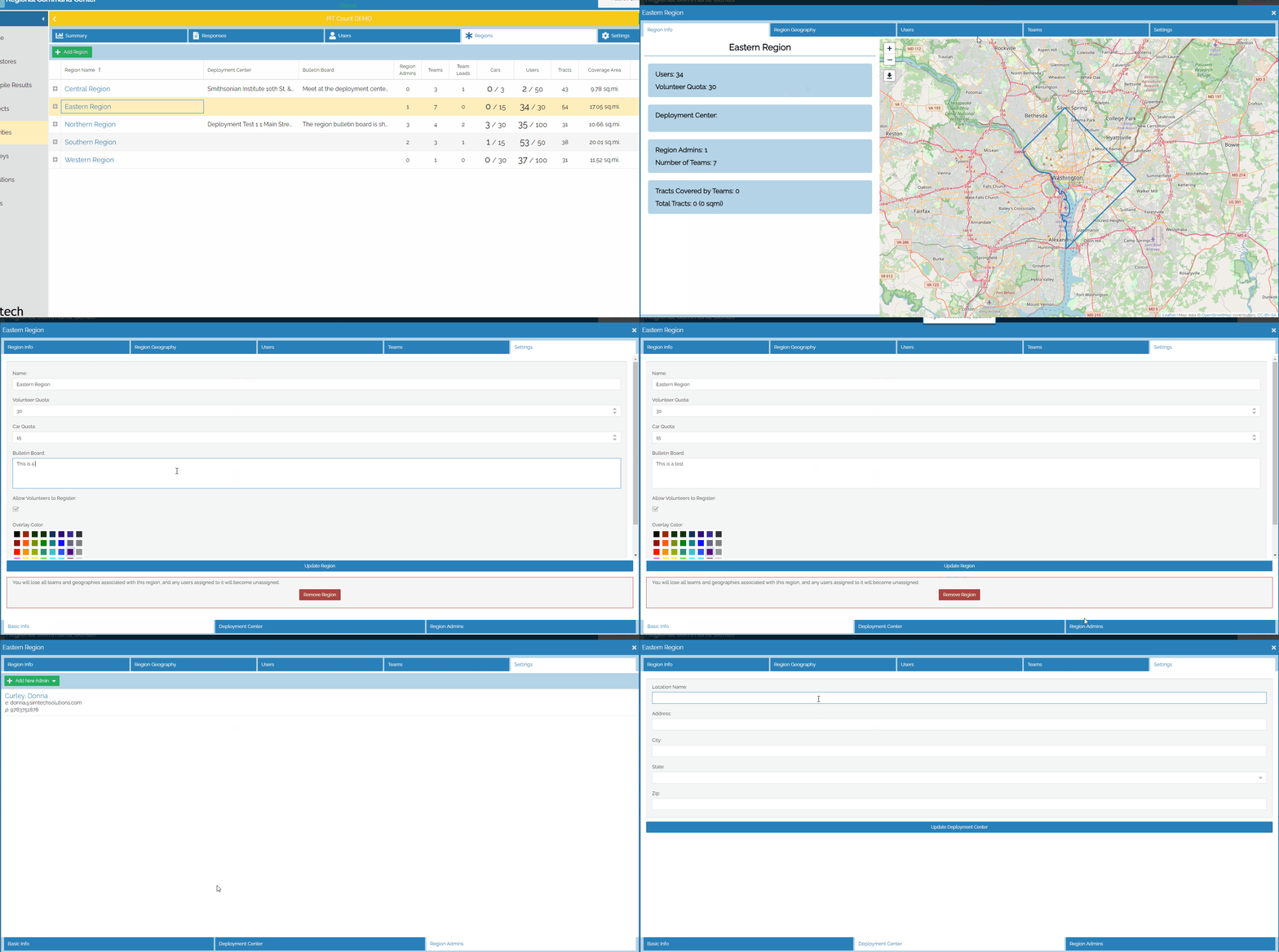
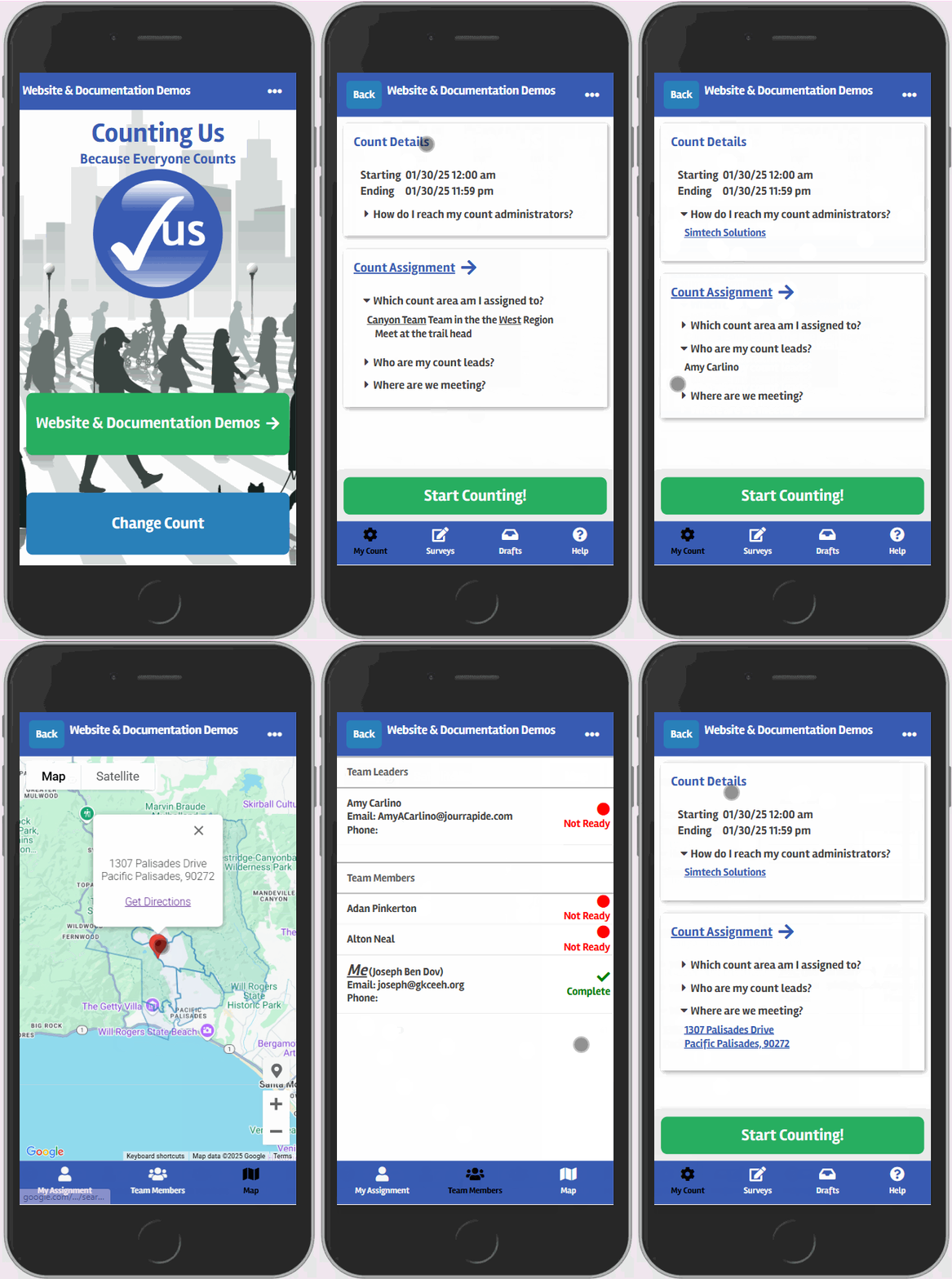
Below are instructions for maintaining the information for each of these nine (9) items. 1) The date and time of the count information can be found within the Settings tab within the Command Center. For the time, please use your local time zone and enter in a leading zero for any single digit hours (i.e. 05:00 am instead of 5:00 am). 2) This is the Technical Lead's email and is updated on the Settings page. 3) Surveyors can be assigned to regions from within the Regions tab of the Command Center. Details for this step can be found here. 5) Coverage areas can be defined both for the Region and for Count Teams within a region. If the coverage is not defined for a Count Team then the user will see the coverage area for the entire Region. 6) Count Teams are defined within the Users tab within Teams. Once defined, anyone assigned to the same Count Team will be able to see the list of who else has been assigned to their team. 8) The meet-up location will be the Deployment Center location for the Region as shown in the image below unless there is a designated location provided for the Team in the Settings page of Teams. 9) The Settings tabs for both Regions and Teams have a Bulletin Board to enter in any other key information to be shared with surveyors. This is also shown in the image below, and these settings exist for Regions and for Count Teams. |