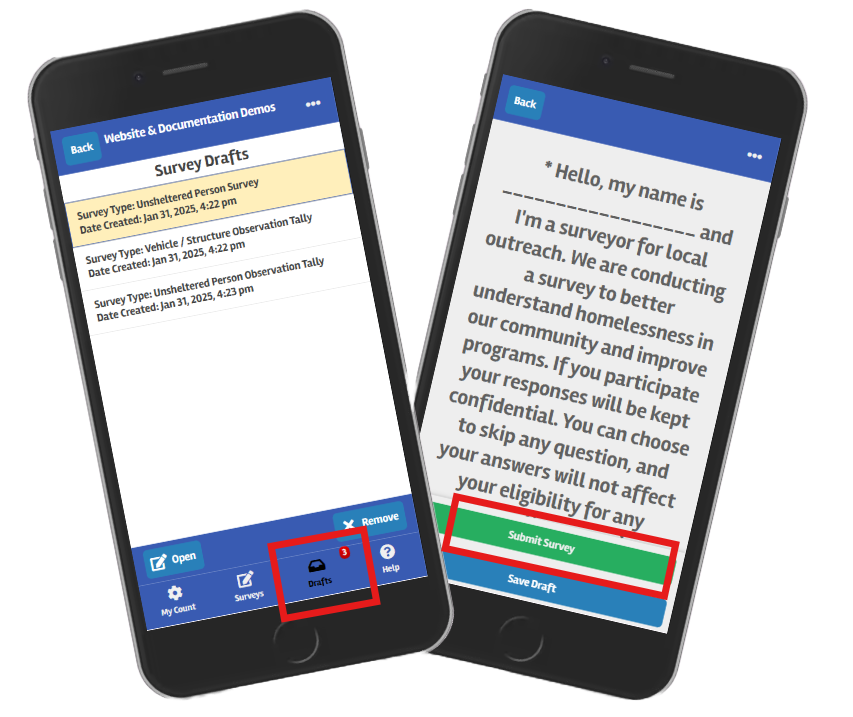
If you have saved a completed survey that is ready for submission, and are in an area with a connection to the Internet, tap the “Drafts” icon at the bottom of the app to view your saved drafts.
To submit a survey that is ready for submission, tap it to select, and then tap the “Submit” icon as shown below. Tap ‘Yes’ on the pop-up window and your draft will be submitted and removed from the list.
If the draft does not submit, there are a few different potential reasons for this:
- The Draft(s) was saved while you were counting as part of a different Count Activity. If you select a draft, click open and nothing happens your drafts may be saved for a different activity. To submit the Draft, follow these instructions to switch to the Count Activity for which the Draft survey was saved so that it can be submitted.
- You may have conducted surveys for a Count Activity that has been locked by the Regional Count Administrator. If this were for a prior year’s homeless census, you may need to change Count Activity and re-enter in the survey results.
- You are in an area without Internet access.
- The survey has questions that are required but have not been answered.
 |