How to message Users within the Regional Command Center
There are different ways to message users. You can message a user through the users tab and when opening up a response.
Through Opening a Response:
- Go to the ‘Responses’ tab and click on the ‘List’ tab. Open up the activity by either double clicking the row or clicking on the open icon on the left.
.png)
- Select the ‘Message’ button on the bottom. A window will pop up where you will be able to type out your message.
.png)
- Once your message is typed out, select the method in which you would like to communicate with the user (email, text, or both)
- Emailing a user will send them an email from donotreply@pointintime.info

- Texting a user uses Twilio, which sends messages from a deidentified phone number. We ask that this is primarily used when trying to contact someone through opening a response.

- Click the green send button and your message will be sent to the user who submitted that response.
Through Users Tab:
- Go to the ‘Users’ tab in your activity. On the bottom a ‘Message Users’ button should appear.
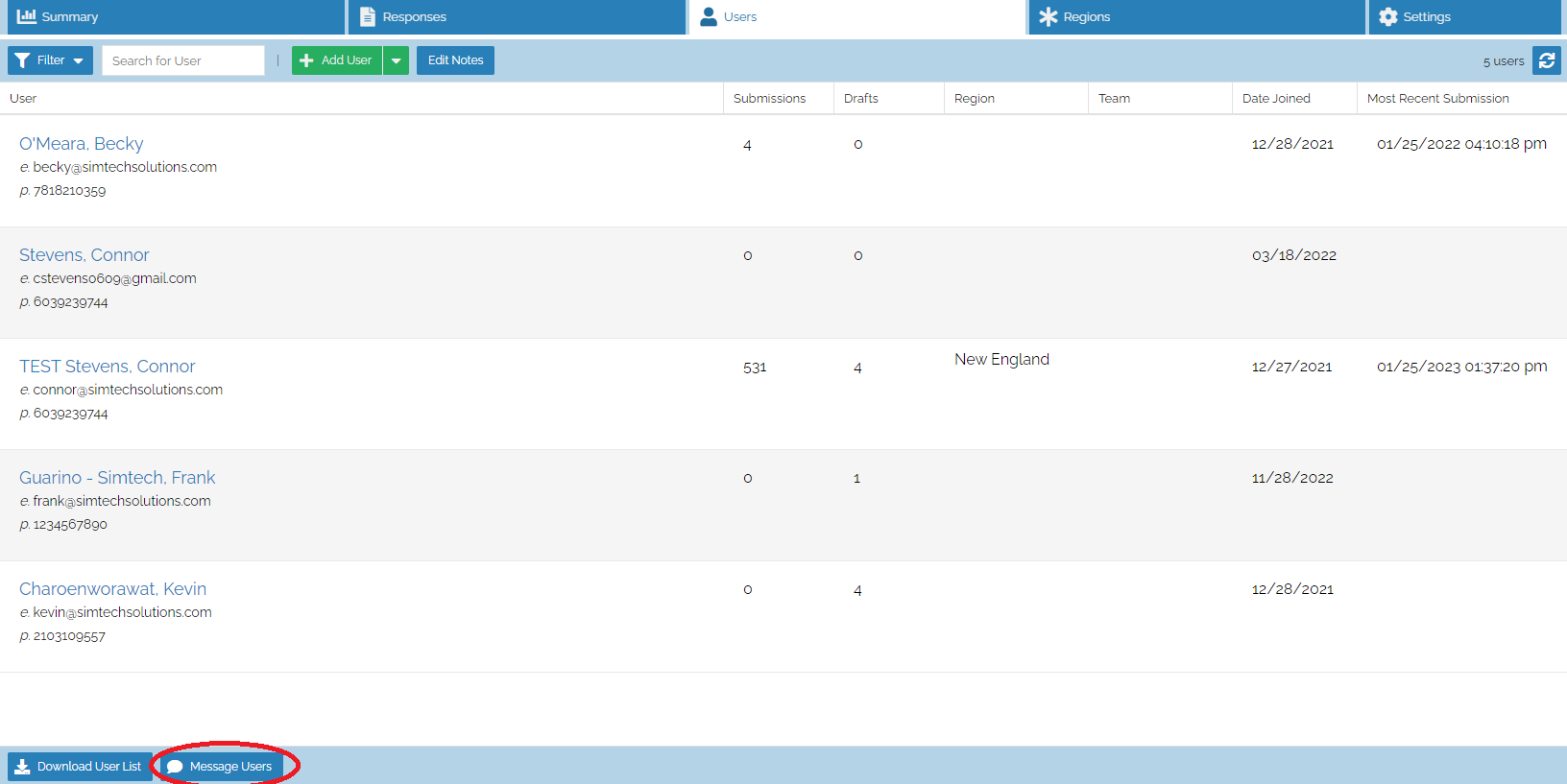
- When you click on it, a window will appear where you can type your message and select the users you want to send to. If you select the checkbox on top, it will select all users.
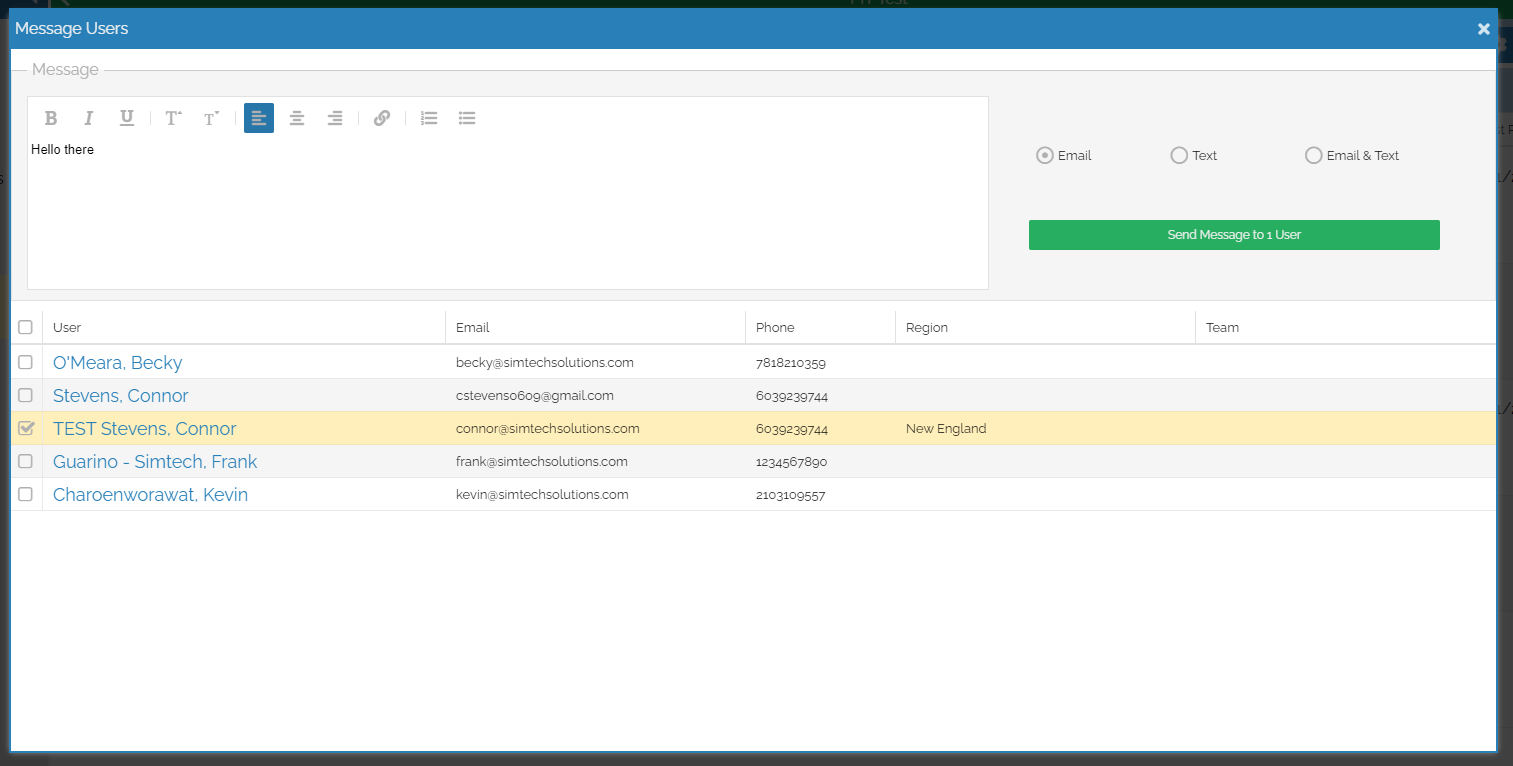
- Once your message is typed out and your users are selected, select the method in which you would like to communicate with them.
- Click the green send button and your message will be sent to all selected users.