Once an Admin has signed into their account on the Command Center, click on the Surveys button on the left menu. This will show all surveys within the datastore for your region. It is important to edit the survey that will be assigned to the correct Activity.
.png) |
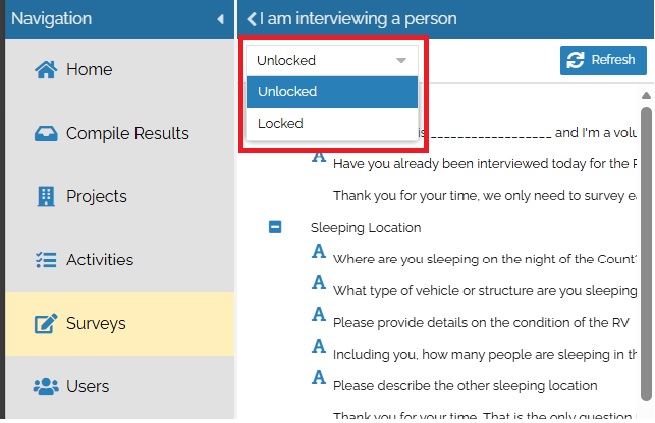
Once inside Surveys, select the survey you wish to update. Make sure to select Unlocked before attempting to make any changes. When you are finished making changes, change it to Locked to ensure that no accidental or unintentional alterations are made.
 |
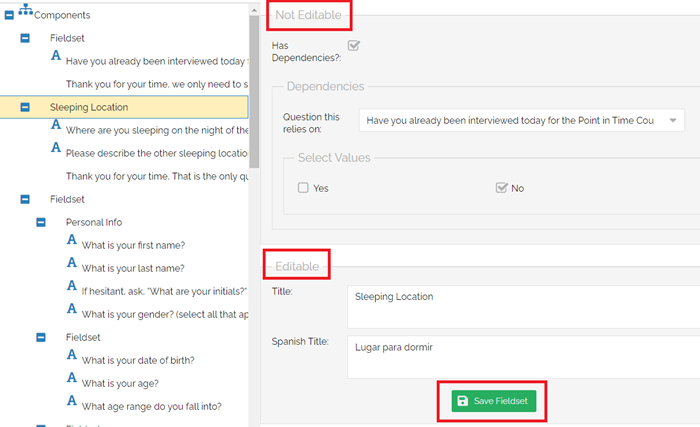
Both Questions and Fieldsets may be edited. Fieldsets are treated as headers to sections within surveys and can be used for titles as well as additional instructions or text for surveyors. After selecting an option, a pop-up will show what can be edited and what cannot. The Not Editable section is integral to how the survey functions within the system, while the Editable section is used for display and translation purposes. Make sure to click SAVE before navigating away from your edits to make sure your progress is not lost. Click Refresh at the top of the survey to show new changes immediately.
 |
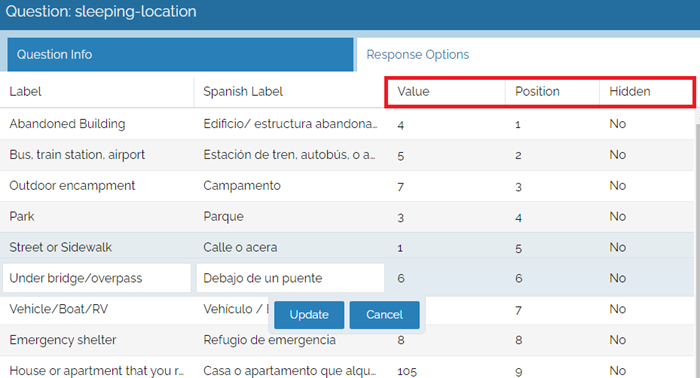
For questions with multiple responses (Checkbox, Dropdown, Radio, etc.), Response Options can have display labels changed both for English and Spanish translations. Currently, no other languages are available at this time. Value, Position, and Hidden are pieces related to how the data is collected within the system. If you would like to have a response value added or hidden, please contact the Simtech team.
 |
Surveys can be added to Activities by navigating to the Surveys tab under Settings within an activity by clicking Add and selecting the desired survey from the dropdown list. Display Name can be altered here as well. Project Based relates to whether a survey will connect with the projects (shelters, day centers, etc.) entered into the Command Center by your team. IND (individual) and HH (household) denote if a survey is capable of being interconnected amongst multiple entries.
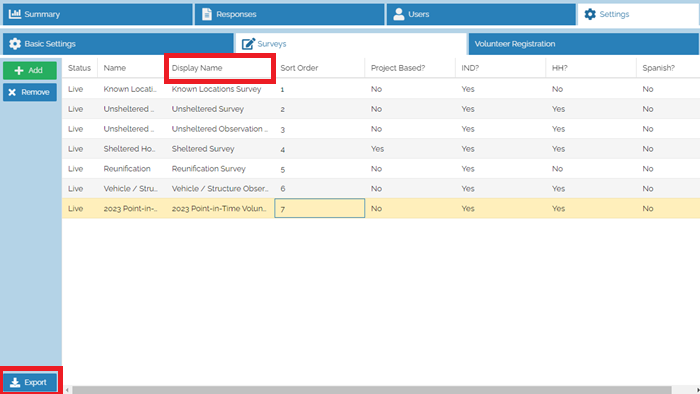 |
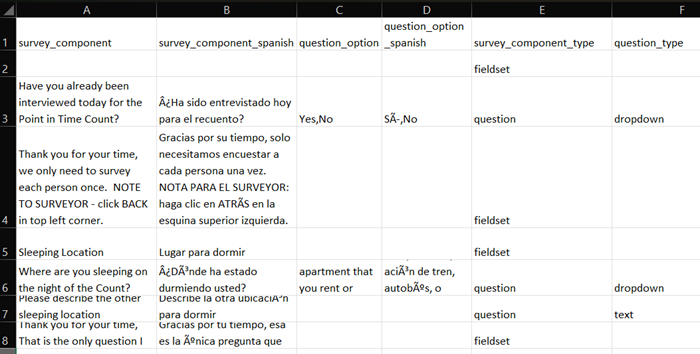
Surveys can be Exported to an Excel file for editing, printing, and reviewing outside of the Command Center.
 |