If you are a Count Administrator for your Continuum of Care (COC), please use the Settings tab to provide key details about your Point-in-Time (PIT) Count.
NOTE: Regional Administrators can manage information about their region from the Settings tab within their designated region(s).
To Update the Count Settings:
-
Log into the Command Center
-
Click on your community’s PIT count for this year in the top left.
-
Go to the Settings tab. In Activity Settings, you can...
-
Indicate the year that this count activity pertains to.
-
Give the PIT Count a name. This can be as simple as the year of the count and the name of your region, or some regions may use branding for their count name. For example, San Diego uses "We All Count".
-
Enter your count dates or use the calendar widget to select the date. For the start and end times, please use a 4-digit time (i.e. 08:00) and indicate if it is "am" or "pm".
-
Enter a setup key. This is the key to be used by communities that did not opt for the Volunteer Registration portal as well as for people in communities that did opt for it but did not register through it and need access on the day of the count.
-
Provide the primary point of contact between Simtech and your community. This email will be used by Simtech staff to reach out for any communication needed to complete your count setup
-
Set your Count Status. The status will be in Pre-Count mode by default. You can switch the count status here or by clicking "Make Active" from the Responses tab. Once a count is completed, data has been validated, it is recommended to change the count status to "Locked". This not only prevents changes to the survey data but also prevents surveyors from inadvertently submitting surveys to a prior count activity.
-
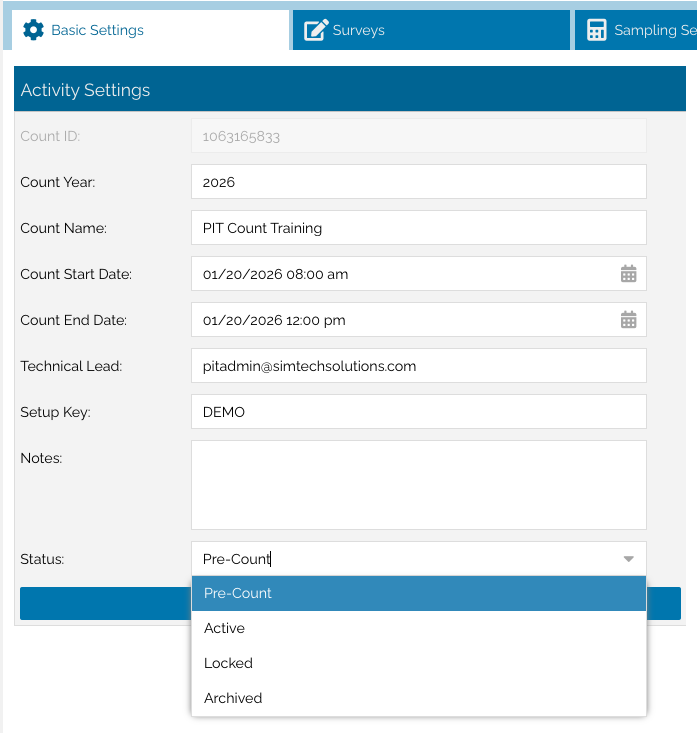
5. Once you’ve confirmed all details, click “Update Activity” at the bottom